
How to Calculate Grades in Google Sheets

Feeling lost while tracking scores across quizzes, homework, and exams? Small calculation errors add up, especially when multiple assignments affect a final score. A Google Sheets grade calculator brings structure, accuracy, and automation to the process.
With a single spreadsheet, students can view scores and averages instantly. You can update results automatically when new scores are added. Everyone can see which assignments hurt their average and where improvement makes the biggest difference.
This guide explains how to calculate grades in Google Sheets, whether you are a student, teacher, or academic administrator. It also helps you build a final grade calculator that automatically combines scores, percentages, and weighted results into one accurate outcome.
How Do You Calculate Grades in Google Sheets?
If you want to calculate grades in Google Sheets, enter student scores in one column and use the IFS formula to assign letter grades automatically:
Grade Conversion Formula (Excel / Google Sheets)
=IFS(B2>=90,"A", B2>=80,"B", B2>=70,"C", B2>=60,"D", TRUE,"F")This formula checks the score in cell B2 and instantly returns the correct letter grade.
Why Use Google Sheets for Grade Calculation?
Manual grade calculation is time-consuming and prone to errors. Google Sheets automates calculations and updates results in real time. It also allows you to create a grading scale calculator that applies consistent grade rules instantly.
Grades Update Instantly
Any update to a score instantly refreshes totals, percentages, and final grades across the spreadsheet. This is a major advantage when you calculate grades.
Flexible Grading Scales
Grading rules can be modified at any time by editing a single formula. Whether you change grade thresholds or weighting percentages, all results update automatically without extra effort.
Accurate Totals, Percentages, and Averages
Built-in formulas ensure calculations remain consistent and error-free. This accuracy is especially important when managing multiple assignments or weighted grading systems.
Accessible on All Devices
Google Sheets works seamlessly on desktop computers, tablets, and mobile devices. This allows grades to be reviewed or updated anytime, from anywhere, with real-time syncing.
Once formulas are set up, Google Sheets handles grading for the entire term.
How to Calculate Grades on a Spreadsheet
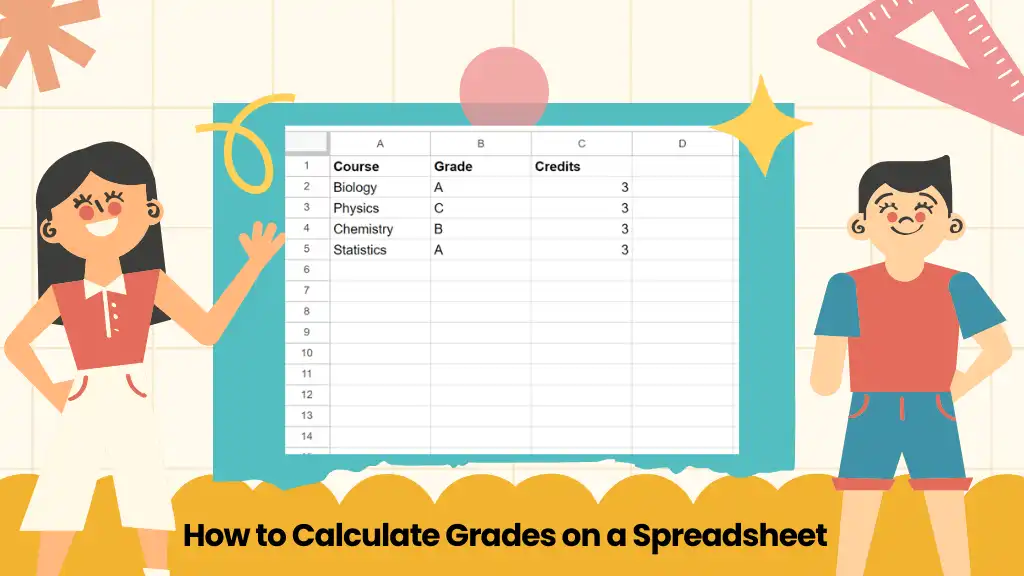
Enter Student Names
Use Column A for names:
- A2: Ahmed
- A3: Hira
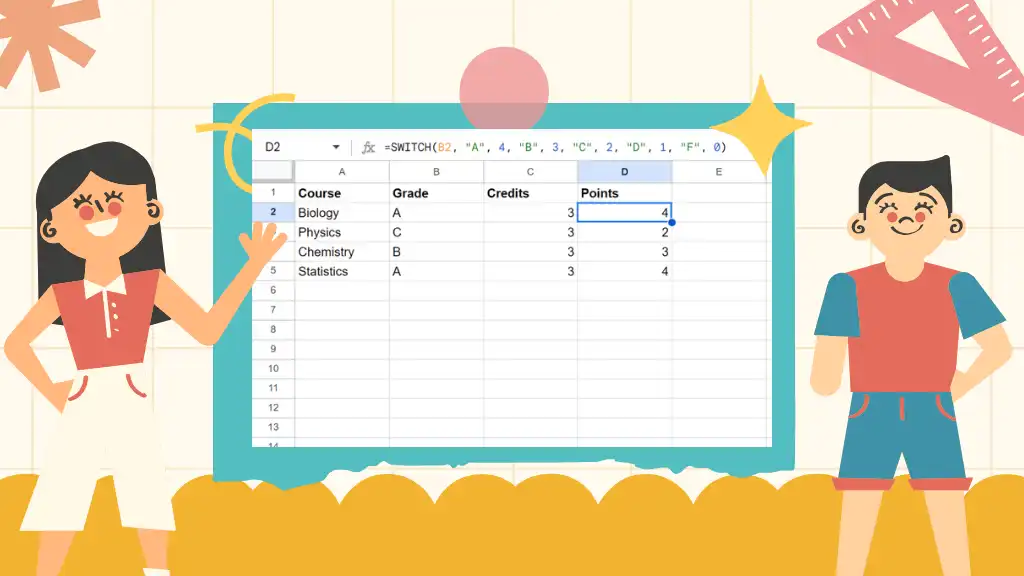
Step 2: Enter Scores
Use Column B for scores or percentages:
- B2: 92
- B3: 76
Step 3: Assign Letter Grades Automatically
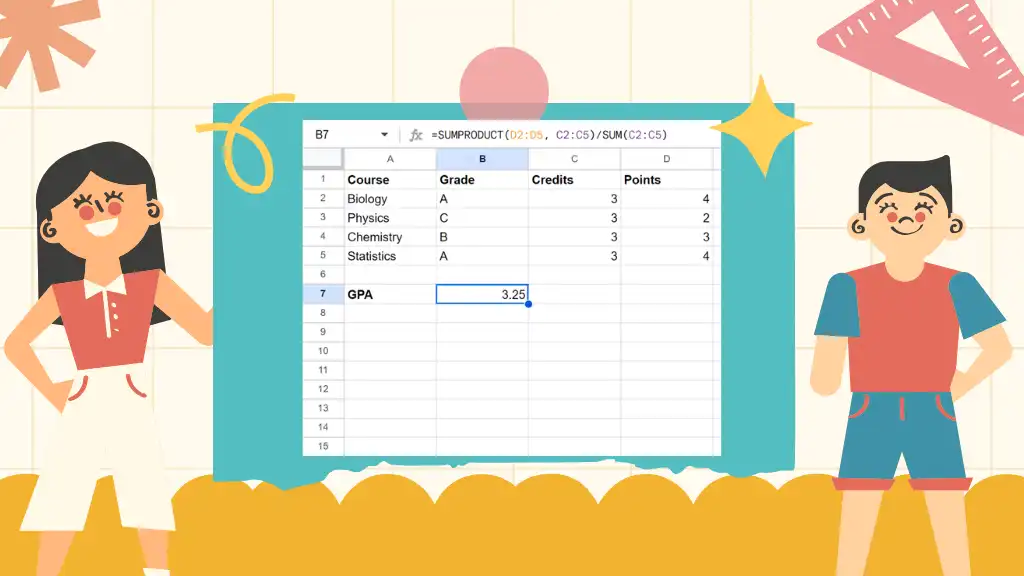
Use Column C for letter grades.
Formula for C2:
=IFS(B2>=90,"A", B2>=80,"B", B2>=70,"C", B2>=60,"D", TRUE,"F")Step 4: Apply the Formula
Drag the formula down to apply it to all students. Grades update instantly whenever scores change. This formula demonstrates a practical way to calculate grades in Google Sheets without manual effort.
How to Make a Gradebook in Google Sheets
A gradebook allows you to calculate grades across multiple assignments, exams, and final results. While the average letter grade summarizes overall academic performance into a single score.
Recommended Gradebook Structure
| Column | Purpose |
| A | Student Name |
| B | Assignment 1 |
| C | Assignment 2 |
| D | Total Score |
| E | Percentage |
| F | Letter Grade |
Step 1: Calculate Total Scores
In D2:
=SUM(B2:C2)
Step 2: Calculate Percentage
In E2:
=D2/200*100
(Adjust 200 based on total possible points.)
Step 3: Assign Final Letter Grades
Reuse the IFS grading formula in Column F.
How to Calculate Weighted Grades in Google Sheets
Many schools use weighted grading systems, where exams count more than homework. you can make grades in Excel by applying weight percentages and using formulas like SUMPRODUCT to calculate final scores.
Example Weights
- Homework: 40%
- Exams: 60%
Weighted Grade Formula
=SUMPRODUCT(B2:C2, {0.4, 0.6})Grading Logic
Final Grade = Σ (Score × Weight)This method reflects real academic grading standards used internationally. You can calculate grades in google sheets very effectively.
How to Track Grades Over Time
Students can monitor academic progress over weeks or semesters, use this layout. It helps track performance trends across multiple assignments. Patterns in scores become easier to identify over time. You can calculate grades in google sheets by identifying performance trends.
- Column A: Student Name
- Column B: Assignment Name
- Column C: Category
- Column D: Score
- Column E: Total Possible
This structure helps identify trends, strengths, and areas needing improvement.
Prevent Common Grade Calculation Errors
Data Validation
Prevents entering invalid scores (e.g., 105 out of 100).
Conditional Formatting
- Highlights failing grades automatically
- Improves readability of reports
Pro Tip: Press CTRL + ` (tilde) to display all formulas at once for easy review.
Useful Google Sheets Grade Formulas
=SUM(B2:D2)=A1+B1=RANK(D2, $D$2:$D$10)=IF(E2>=60,"PASS","FAIL")What Are Absolute References?
The $ signs in $D$2:$D$10 are called absolute references. They lock the cell range so it does not change when formulas are copied, ensuring accurate rankings and comparisons.
Common Mistakes to Avoid
| Feature | Purpose | Benefit |
| Data Validation | Restricts input to valid score ranges (e.g., 0–100) | Prevents incorrect or unrealistic grade entries |
| Conditional Formatting | Highlights grades based on rules (such as failing scores in red) | Improves visibility and helps identify problem areas quickly |
| Consistent Formatting | Keeps number styles and layouts uniform | Makes grade reports easier to read and understand |
| Formula Review (CTRL + `) | Displays all formulas in the sheet | Helps detect calculation errors and accidental formula changes |
FAQs
Final Thoughts
Learning how to calculate grades in Google Sheets simplifies academic record-keeping and saves hours of manual work. A grade calculator in Google Sheets simplifies academic record-keeping. While setup takes minimal time, the long-term benefits are significant. Students gain clearer insights into their performance, and educators save hours of manual work.
Start with a simple spreadsheet today and refine it as your grading needs evolve. When calculations are automated, accuracy improves and everyone benefits.